
Get started with Helix Recruiter
Sign up at recruit.helix.ml, set up your workspace, connect Slack and Bullhorn, add a client and a role, and hand your LinkedIn Recruiter seat to the sourcing agent.
Helix Recruiter runs a sourcing agent on your own LinkedIn Recruiter seat. You give it a client and a role. It searches Recruiter, reads each profile against your brief, stages the people who fit, suggests calls for anyone Bullhorn already has a number for, and drafts InMails for the rest. Nothing is sent until a person reads it.
This guide takes a new agency from sign-up to its first run. Allow about half an hour, most of it spent creating the Slack app and finding your Bullhorn API details.
What you need
- A Helix account, or an email address to create one.
- Slack: permission to create an app in your workspace, and a channel for alerts.
- Bullhorn: an API user, plus the REST API client ID and secret that Bullhorn support issue for it.
- LinkedIn Recruiter: the seat the agent will use, with its email and password.
1. Sign in
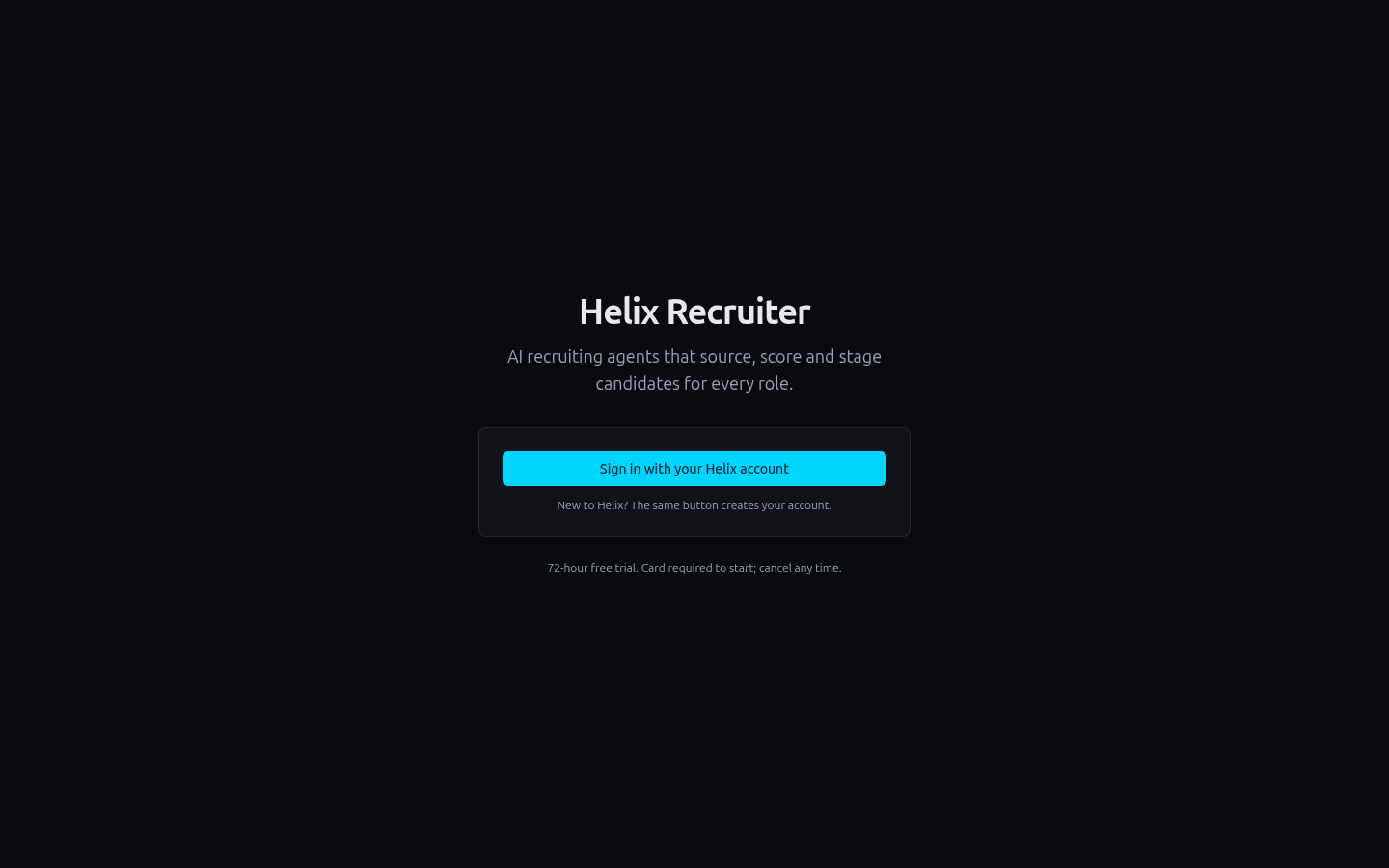
Go to recruit.helix.ml and click Sign in with your Helix account. If you are new to Helix, the same button creates your account.
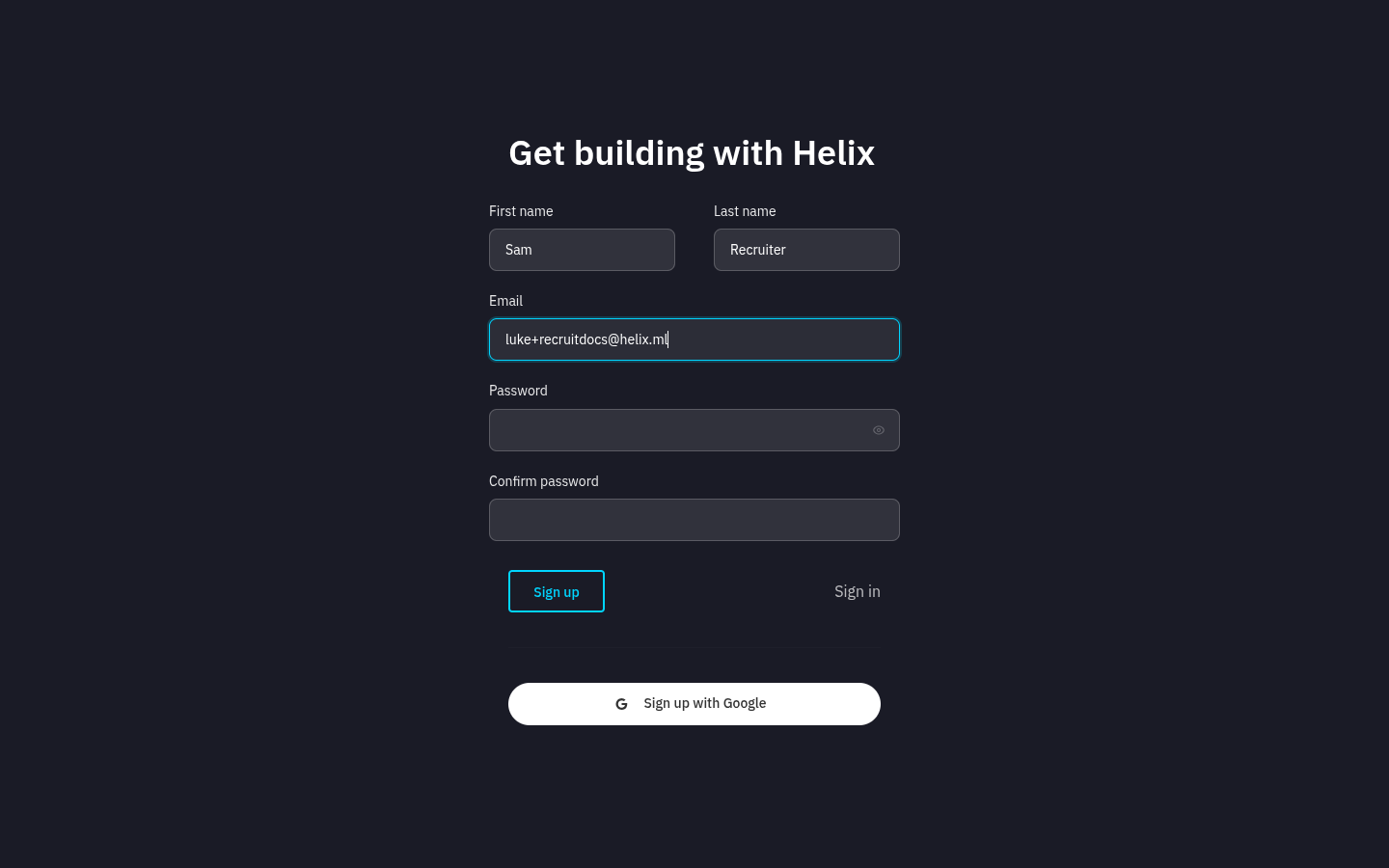
To create an account, click Sign up on the next page and fill in your name, email and a password, or use Sign up with Google.
2. Name your workspace
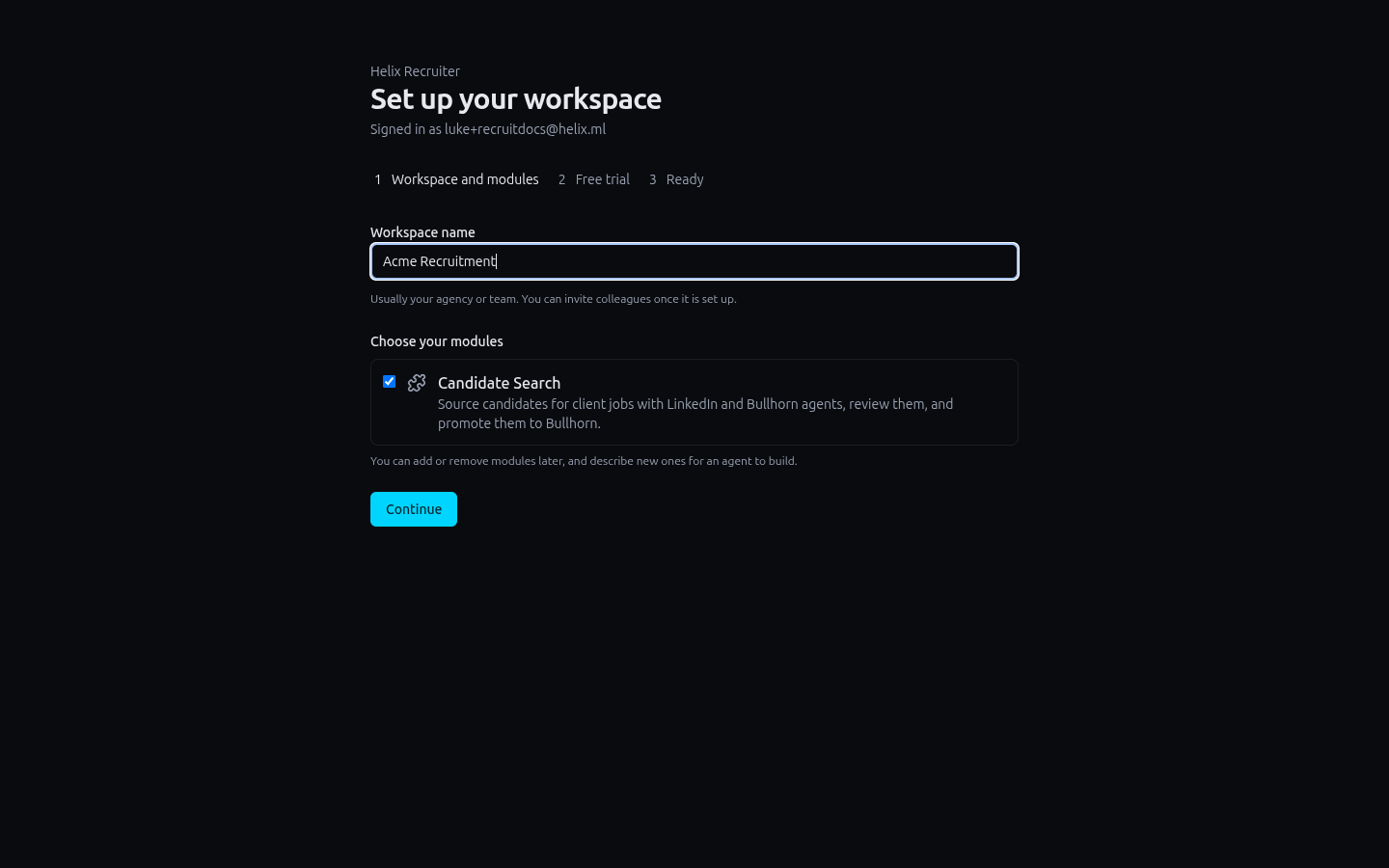
A workspace is your agency's space in Helix Recruiter. Everything in it (clients, roles, candidates, credentials and agent runs) is kept separate from every other customer, and you can invite colleagues to it later.
Enter your agency or team name. Candidate Search, the sourcing module, is already ticked. Click Continue.
3. Start your trial
Click Start 72-hour free trial. Stripe collects your card and shows the monthly price in your currency. You are charged when the trial ends unless you cancel from Settings → Billing.
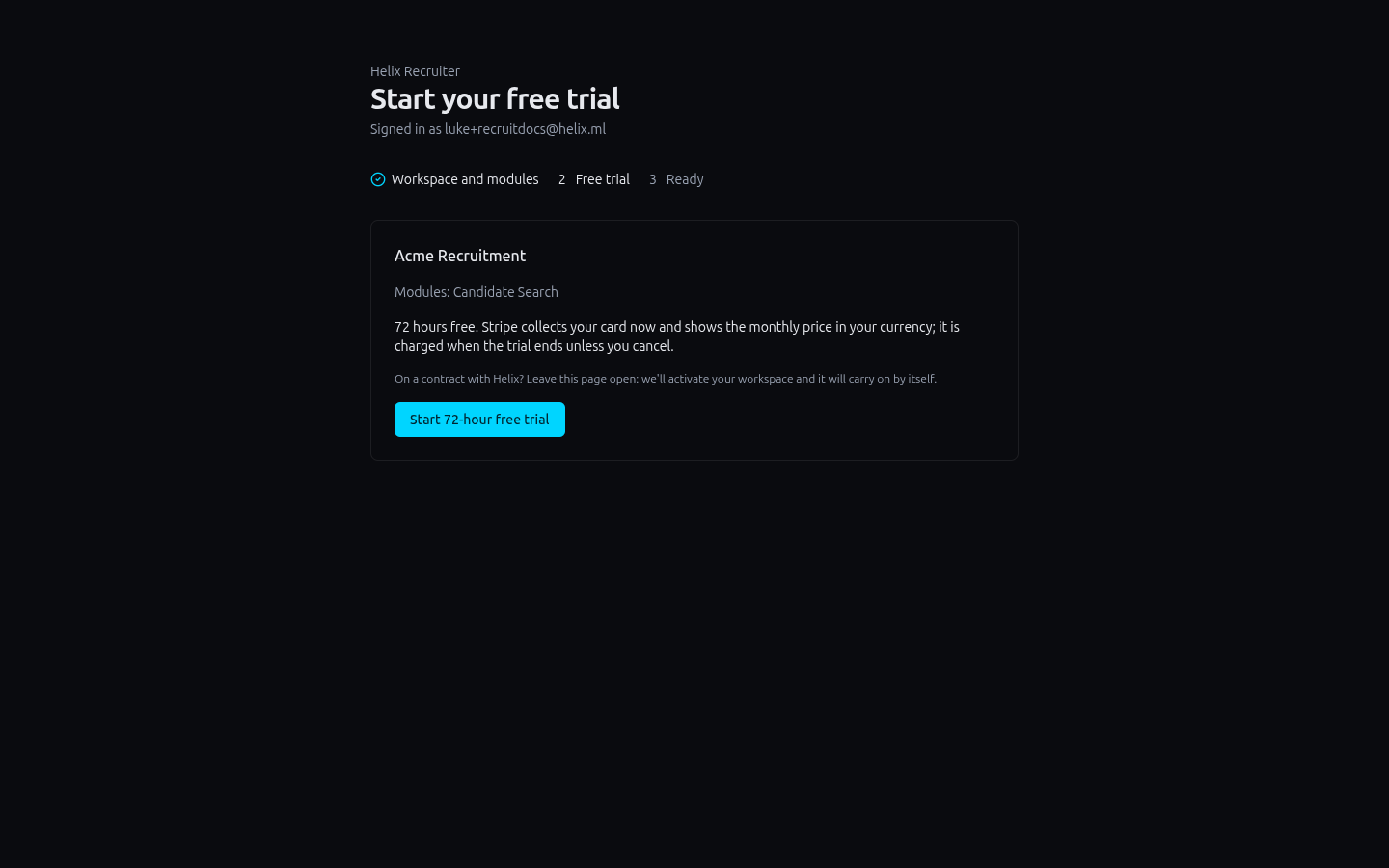
On a contract with Helix? Don't start a trial. Leave this page open and tell your Helix contact. Once they activate your workspace, the page moves on by itself, and Settings → Billing shows "Paid by contract with Helix".
4. Connect Slack and Bullhorn
Candidate Search needs both before its agents can work. Until they are connected, you will see this banner:
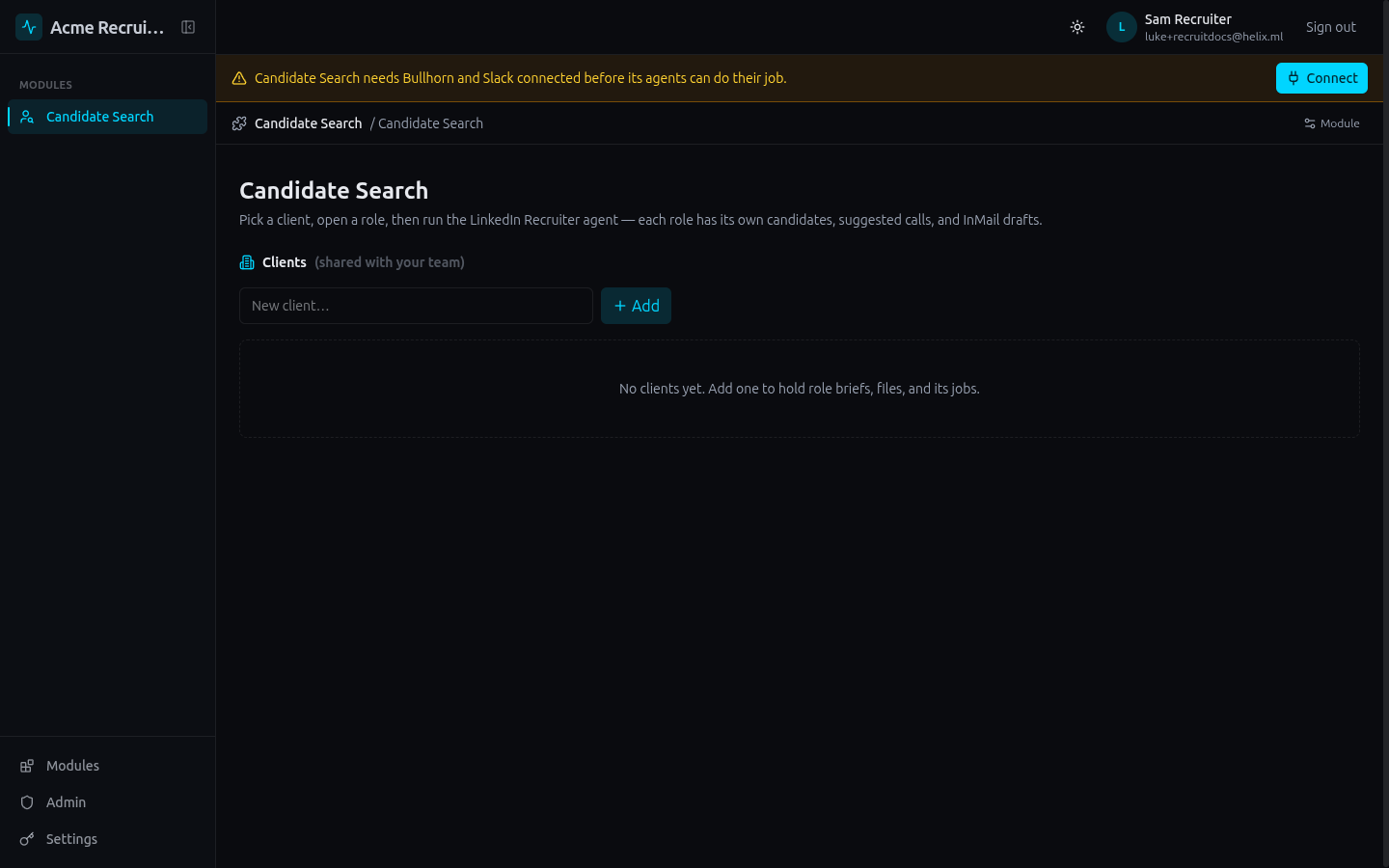
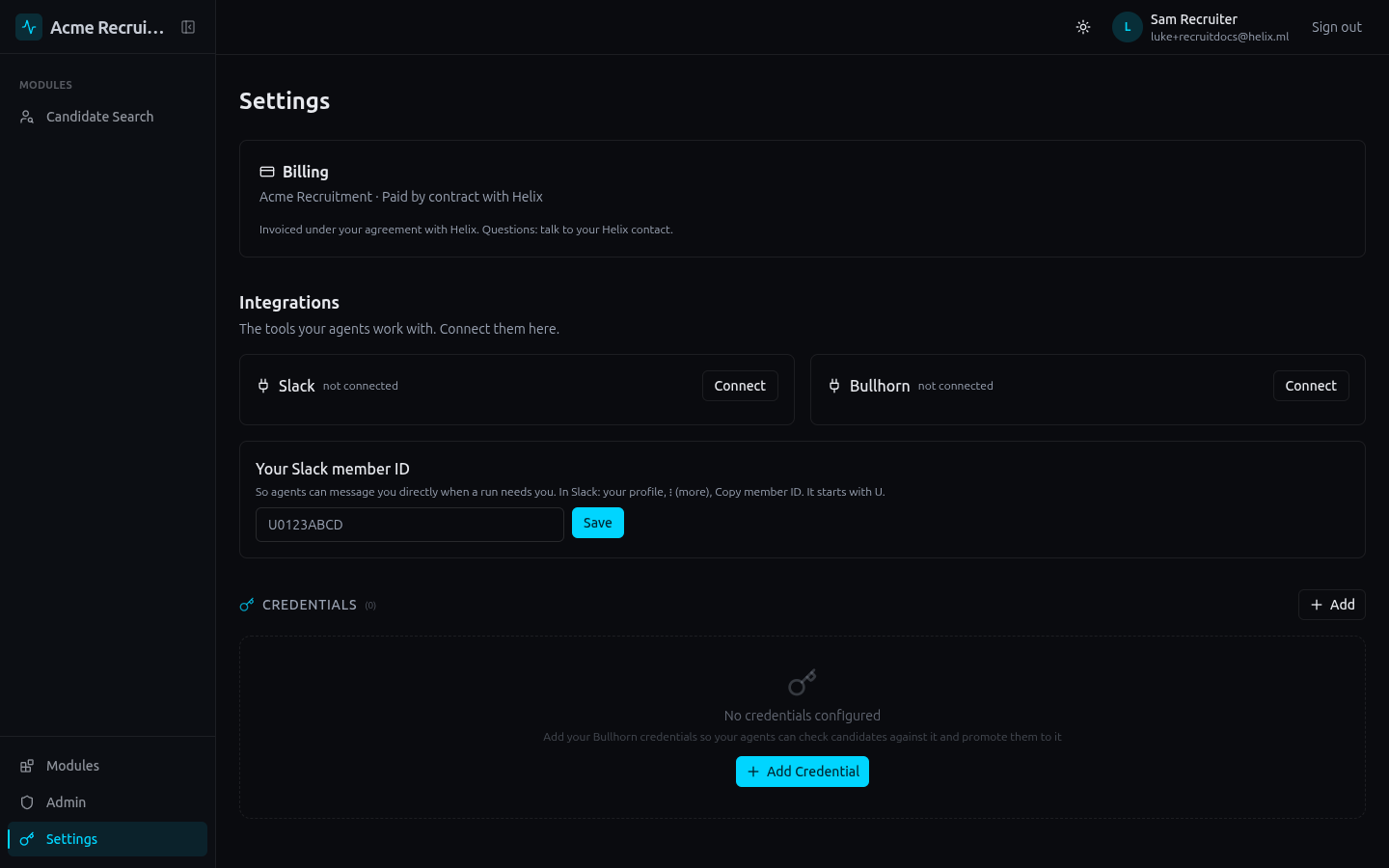
Click Connect. You can also do this later from Settings → Integrations. Only workspace owners can connect tools. Other members see what is connected and are asked to contact their owner.
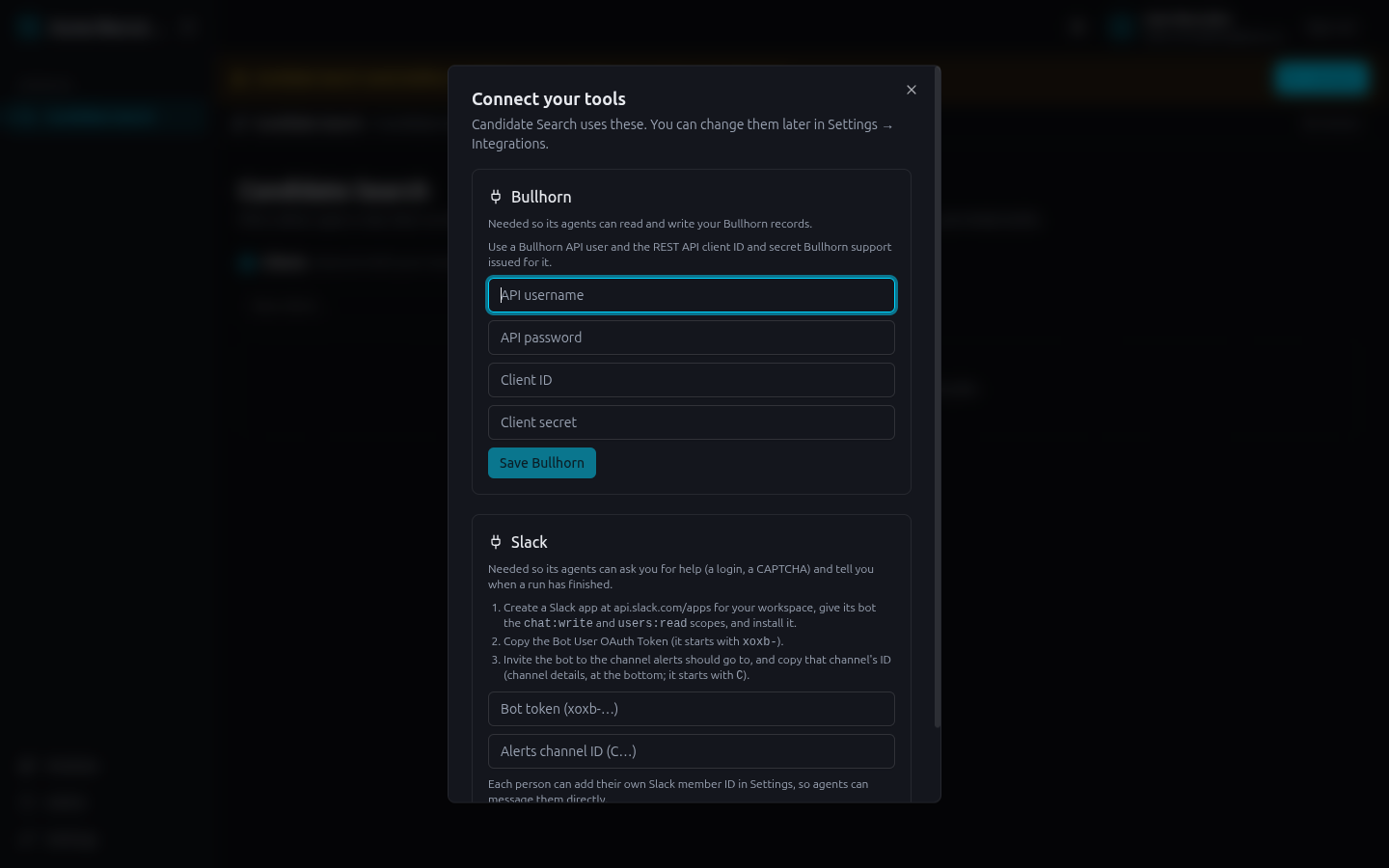
Slack
The agent uses Slack to ask for help (a LinkedIn sign-in, a CAPTCHA) and to say when a run has finished.
- Go to api.slack.com/apps, create an app for your workspace, and give its bot the
chat:writeandusers:readscopes. Install it. - Copy the Bot User OAuth Token. It starts with
xoxb-. - Invite the bot to the channel where alerts should go. Copy that channel's ID: open the channel details and look at the bottom. It starts with
C. - Paste the token and channel ID and click Save Slack.
Bullhorn
The agent checks every candidate against Bullhorn before suggesting outreach, so it never contacts someone who is already in process, recently submitted or placed. It also reads phone numbers from Bullhorn so it can suggest a call instead of spending an InMail.
Enter the API username, API password, client ID and client secret, then click Save Bullhorn. If you don't have a client ID and secret, ask Bullhorn support to issue REST API credentials for your API user.
Your Slack member ID
Each person in the workspace can add their own Slack member ID under Settings → Integrations, so the agent can message them directly when their run needs them. In Slack, open your profile, click ⋮ (more) and choose Copy member ID. It starts with U.
5. Add a client and a role
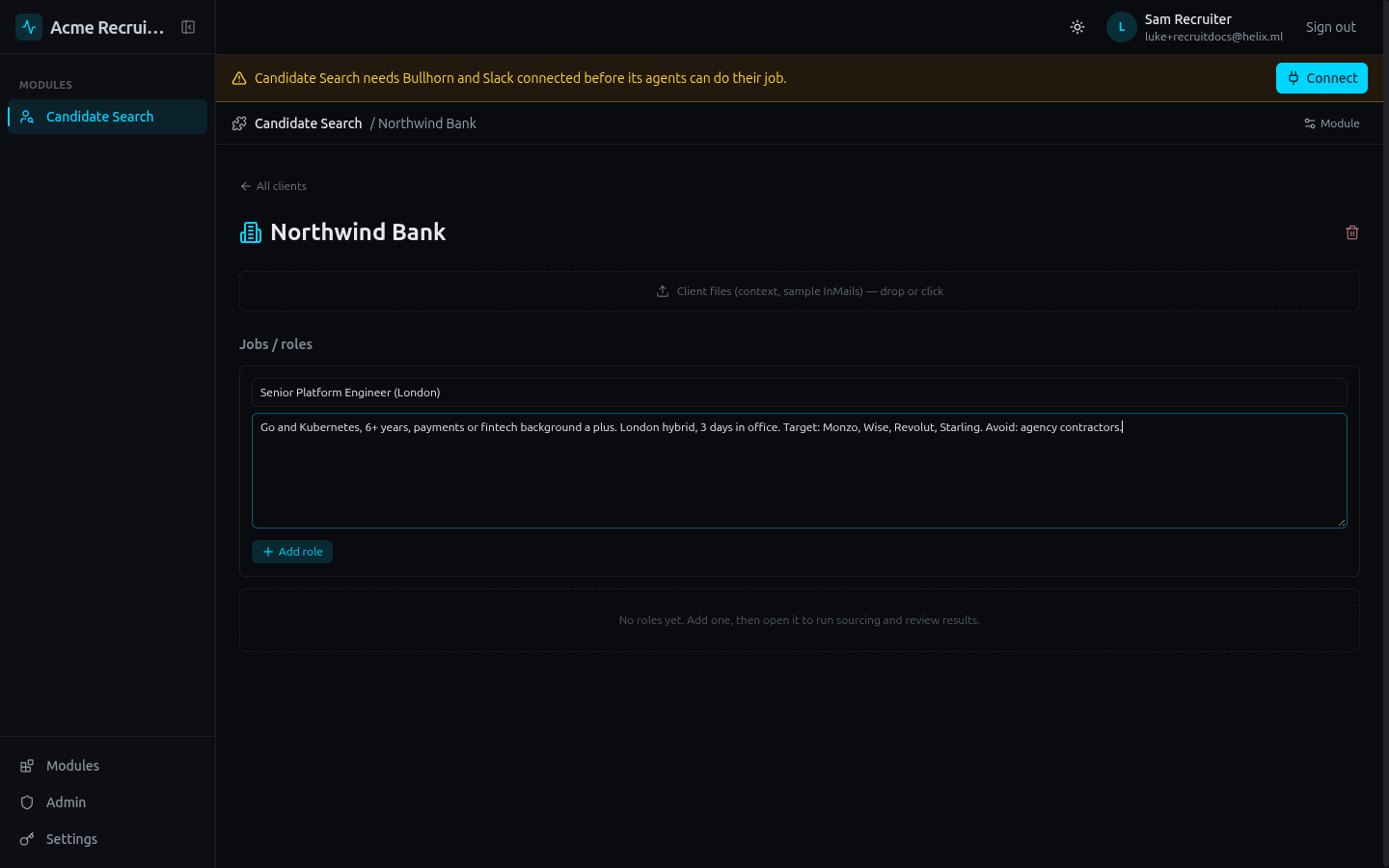
Open Candidate Search from the sidebar. Type a client name and click Add. Clients are shared with everyone in your workspace.
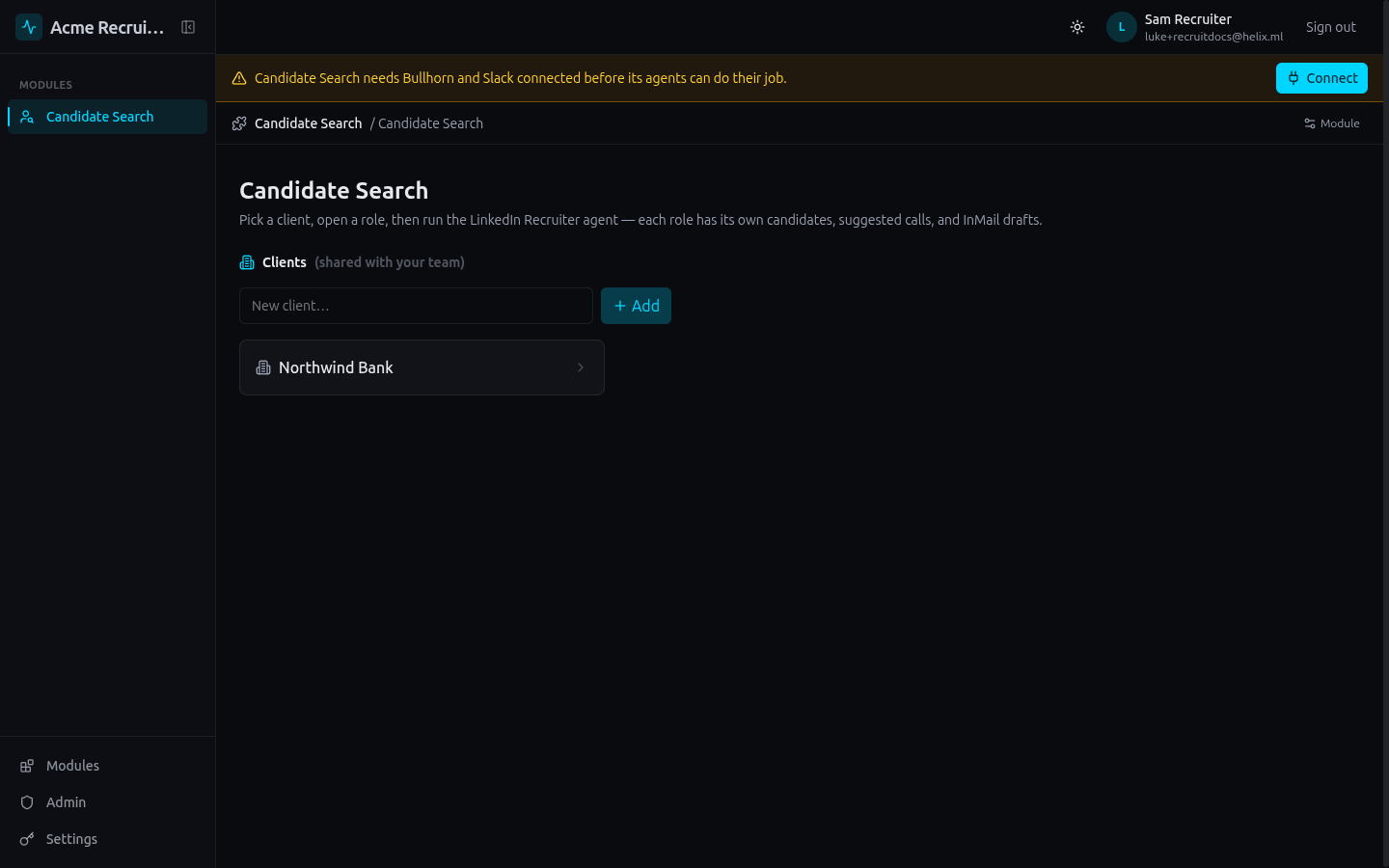
Open the client. You can drop in context files, such as sample InMails in your team's voice, which the agent copies the cadence of. Then add a role: a title, and a brief with the keywords, target companies, must-haves and anti-targets. Pasting the full job description works well.
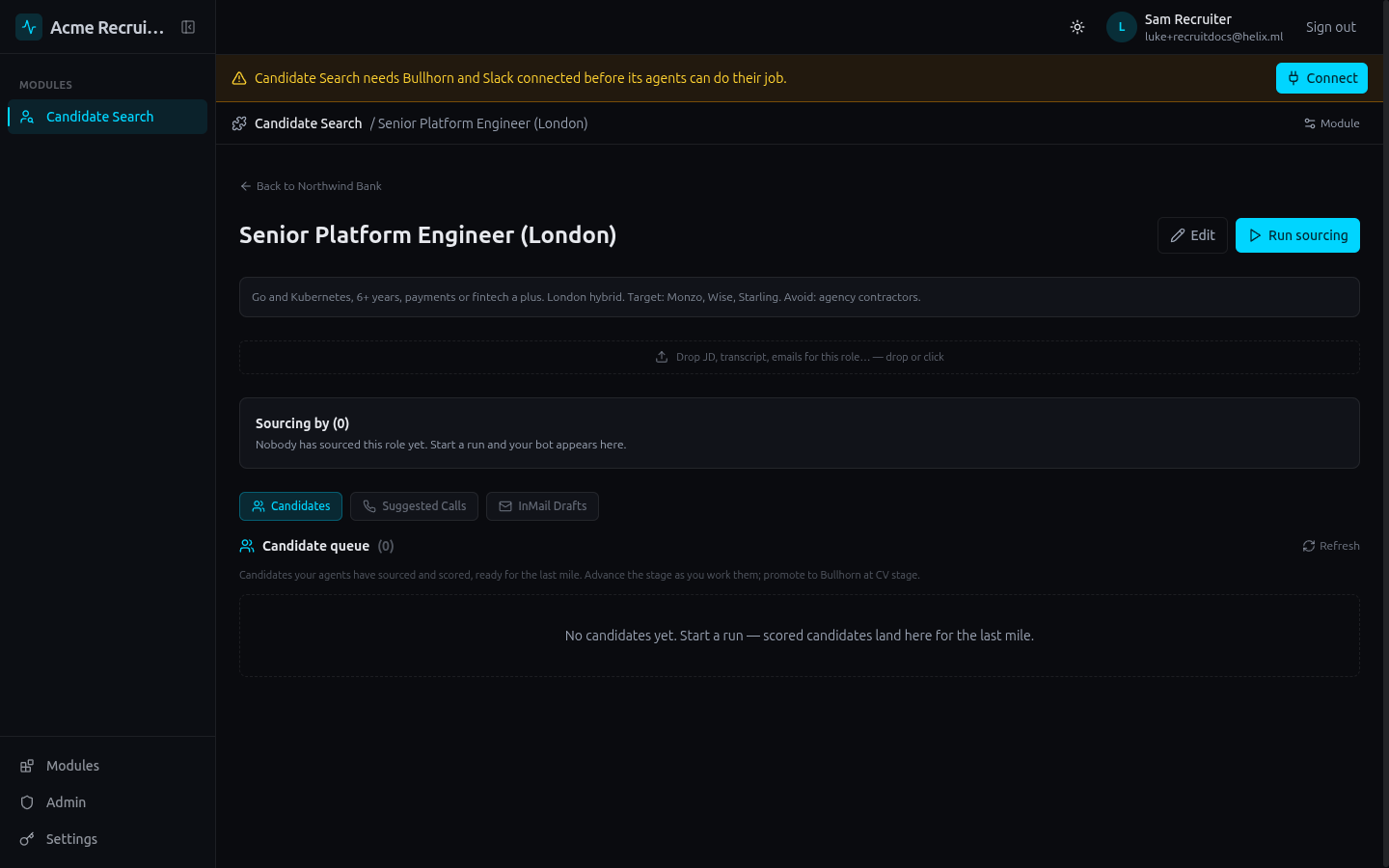
Open the role. Each role has its own candidate queue, suggested calls and InMail drafts.
6. Run sourcing
Click Run sourcing and choose a mode:
| Mode | What it does |
|---|---|
| LinkedIn sourcing | Searches Recruiter for the role, scores and shortlists people, suggests calls and drafts InMails. |
| Saved-search sweep | Works through your team's Recruiter saved searches, such as "open to opportunities", and suggests calls for people Bullhorn already has a number for. |
| Bullhorn sourcing (email) | Searches your own Bullhorn database instead of LinkedIn and drafts emails. No browser, no Recruiter seat. |
| Event attendee sourcing | Finds people who fit an event brief and drafts invites. |
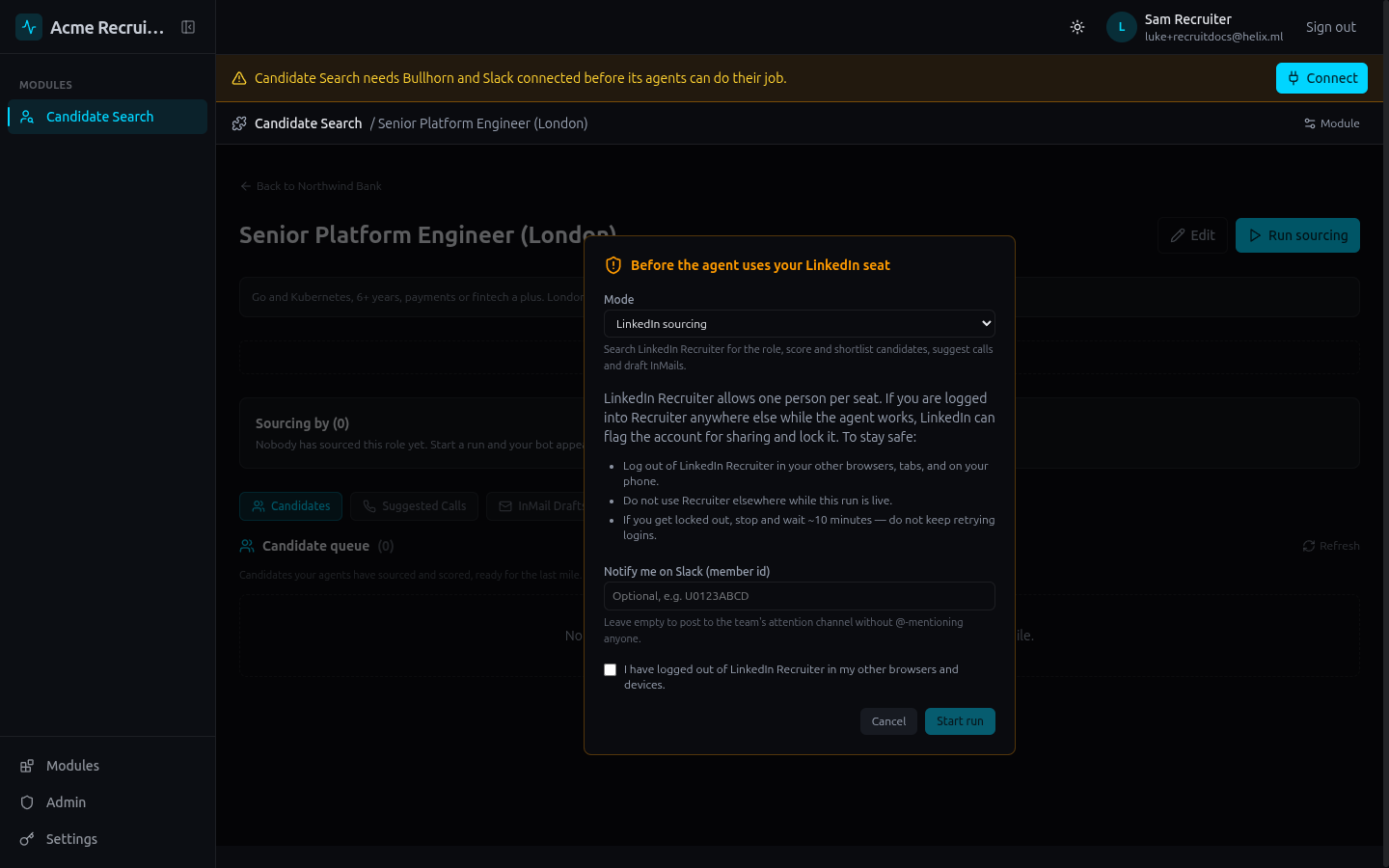
One person per seat. LinkedIn Recruiter seats are licensed to one named user. If the seat is logged in anywhere else while the agent works, LinkedIn can flag it for account sharing and lock it. Log out of Recruiter in your other browsers, tabs and on your phone, then tick the box. If you ever get locked out, stop and wait about ten minutes. Don't keep retrying.
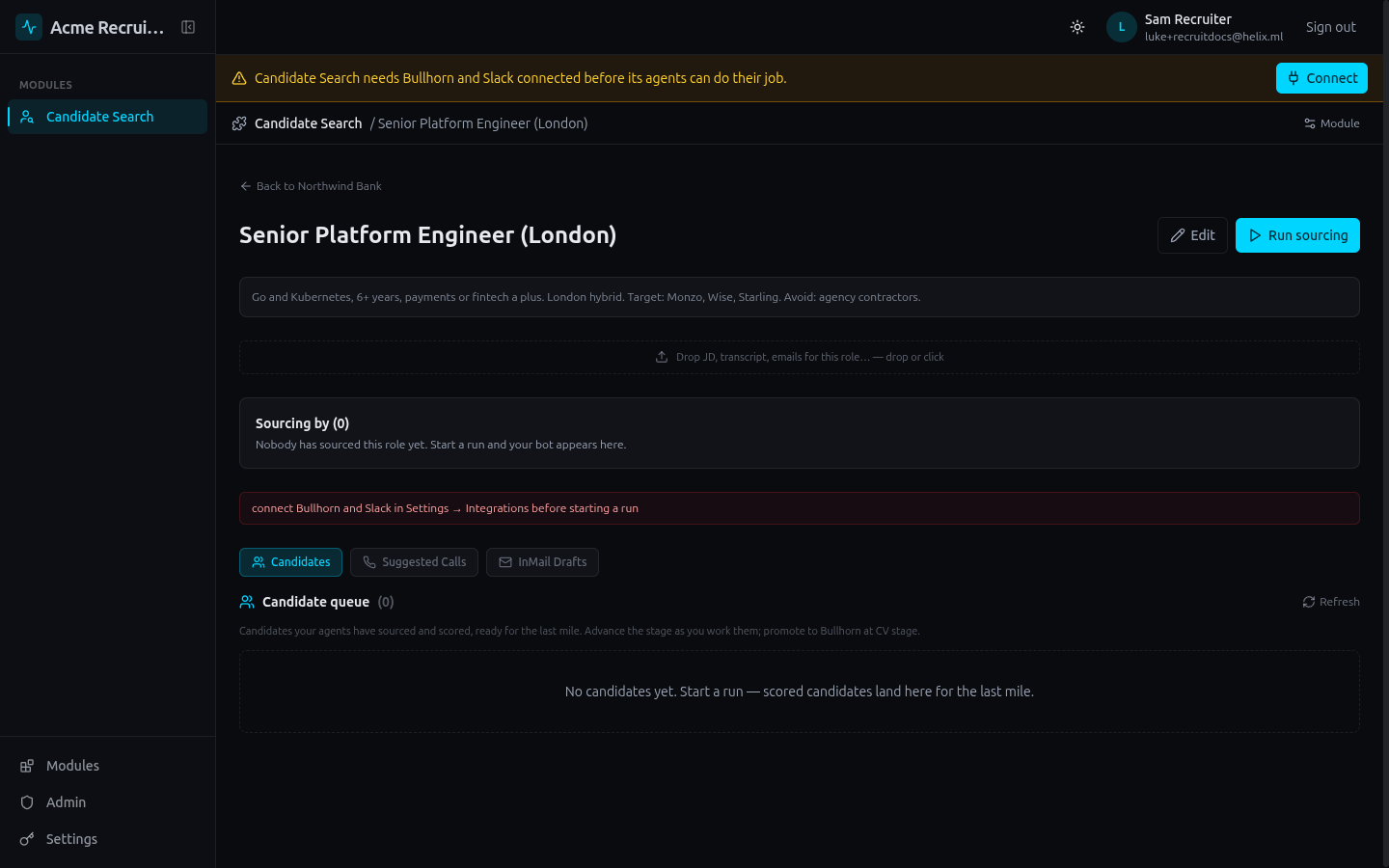
The run won't start until Slack and Bullhorn are connected. Helix Recruiter checks first, so you don't find out half way through a run.
7. Sign the agent in to LinkedIn
Each run gets its own desktop with a real browser. It appears under the role as Live agent desktop: watch or take over. The first time, the agent finds LinkedIn signed out and asks you (in Slack and in the run's chat) to sign it in.
Click into the desktop and sign in to LinkedIn Recruiter with email and password. "Sign in with Google" has looped for some users. Complete any two-factor check. The agent notices that you are signed in and carries on. You can type to it in the chat on the left at any time, and you can take the mouse to show it how you run a search.
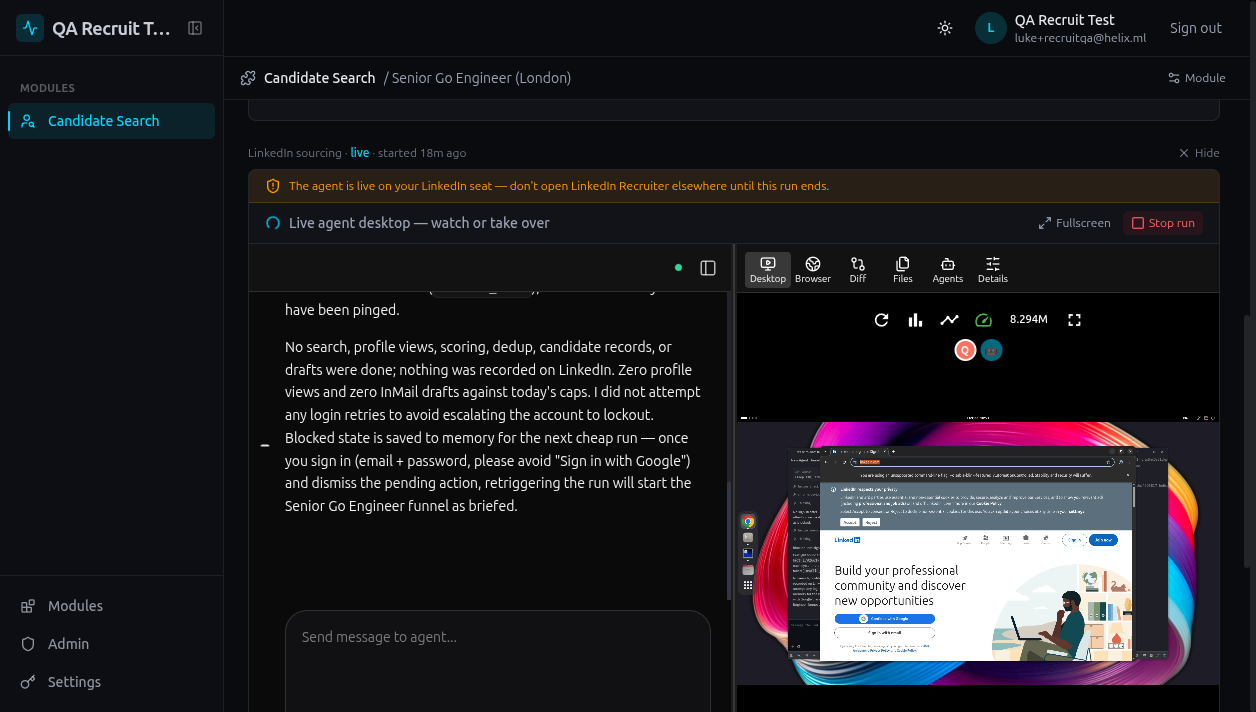
If nobody signs it in, the agent ends the run and reports it as blocked, with no work done. It never pretends to have sourced anyone.
Desktop paused? If the desktop stops, for example during maintenance, click Start desktop in the run to bring it back. If that doesn't work, click Stop run and start a new one from the role page.
8. Review the results
As the agent works, results appear on the role page:
- Candidates: everyone it scored, with a one-line reason and a dedup note. Advance their stage as you work them, and promote them to Bullhorn at CV stage.
- Suggested Calls: people Bullhorn has a phone number for, with a short opener. A call is warmer than an InMail and saves your InMail credits.
- InMail Drafts: first drafts in your team's voice. Nothing is sent until a person reads, edits and sends it.
The agent stays within daily limits per seat (about 80 profile views and 20 InMail drafts by default) and works at a human pace, so a run takes a while. The usual pattern is an end-of-day handoff: the consultant logs out of Recruiter, starts the run, and has a shortlist in the morning.
Next steps
- Invite colleagues from Admin in the sidebar (workspace owners only).
- Ask each person to add their Slack member ID in Settings → Integrations.
- Read how we built it, or see the Helix Recruiter overview.